

Environment Preparation
Select the appropriate environment installation script based on your deployment architecture.
System Requirements
Before deployment, verify your server's operating system version using the following command:
lsb_release -aExample output:
No LSB modules are available.
Distributor ID: Ubuntu
Description:    Ubuntu 22.04.5 LTS
Release:    22.04
Codename: jammyNote: The cluster supports
Ubuntu 22.04andUbuntu 24.04. If your version differs from the recommended specifications, forced installation may cause program crashes or service interruptions. For optimal experience, we strongly recommend using the officially supported versions.
Disable Kernel Auto-Update
If kernel auto-update is not disabled, the system may automatically upgrade the kernel version after reboot, causing a mismatch between the current kernel and the kernel version required by the graphics driver during installation, rendering the graphics driver unusable. We recommend disabling kernel auto-update before installing graphics drivers.
10periodic Configuration
Open the configuration file /etc/apt/apt.conf.d/10periodic:
vim /etc/apt/apt.conf.d/10periodicAdd or modify the following content:
APT::Periodic::Update-Package-Lists "0";
APT::Periodic::Download-Upgradeable-Packages "0";
APT::Periodic::AutocleanInterval "0";
20auto-upgrades Configuration
Open the configuration file /etc/apt/apt.conf.d/20auto-upgrades:
vim /etc/apt/apt.conf.d/20auto-upgradesAdd or modify the following content:
APT::Periodic::Update-Package-Lists "0";
APT::Periodic::Unattended-Upgrade "0";
Disable Nouveau Open-Source Driver
To prevent
nouveau(Linux open-source NVIDIA driver) from interfering with the installation and use of official drivers, it needs to be disabled.
Edit Configuration
Open the configuration file /etc/modprobe.d/blacklist-nouveau.conf:
vim /etc/modprobe.d/blacklist-nouveau.confAdd the following content:
blacklist nouveau
options nouveau modeset=0
Update and Reboot
Update initramfs to apply the configuration changes:
update-initramfs -uAfter completion, reboot the server for changes to take effect:
rebootCheck Drivers
Before proceeding with installation, first check whether the server has the corresponding GPU driver installed. If already installed, skip to
Environment Installation
nvidia-smiExample output:
If GPU information is displayed, the driver is already installed, and you can skip the following installation steps.
+-----------------------------------------------------------------------------------------+
| NVIDIA-SMI 570.153.02             Driver Version: 570.153.02     CUDA Version: 12.8     |
|-----------------------------------------+------------------------+----------------------+
| GPU  Name                 Persistence-M | Bus-Id          Disp.A | Volatile Uncorr. ECC |
| Fan  Temp   Perf          Pwr:Usage/Cap |           Memory-Usage | GPU-Util  Compute M. |
|                                         |                        |               MIG M. |
|=========================================+========================+======================|
|   0  NVIDIA GeForce RTX 3090        Off |   00000000:01:00.0 Off |                  N/A |
| 36%   34C    P0            111W /  350W |       0MiB /  24576MiB |      0%      Default |
|                                         |                        |                  N/A |
+-----------------------------------------+------------------------+----------------------+

+-----------------------------------------------------------------------------------------+
| Processes:                                                                              |
|  GPU   GI   CI              PID   Type   Process name                        GPU Memory |
|        ID   ID                                                               Usage      |
|=========================================================================================|
|  No running processes found                                                             |
+-----------------------------------------------------------------------------------------+
Tip: If the query result matches the examples above (driver information displayed successfully), skip the Download Driver and Install Driver steps below and proceed directly to Download Installation Script.
Download Drivers
Visit the
NVIDIA Driver Download Pageand select and download the Runfile installer based on your GPU model and operating system version.
Enter the GPU model (e.g., GeForce RTX 3090, Linux 64-bit).
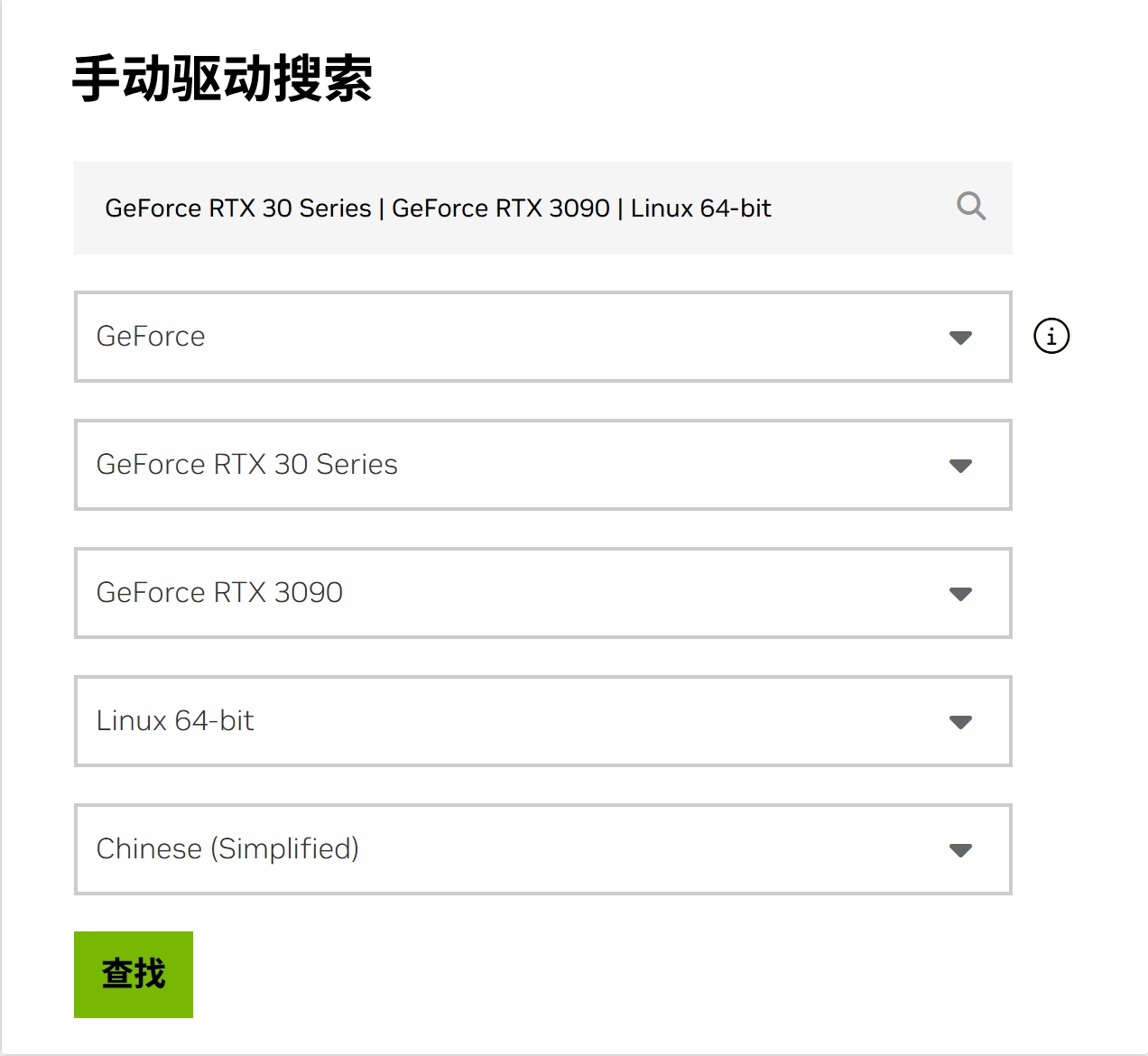 Click
Search.
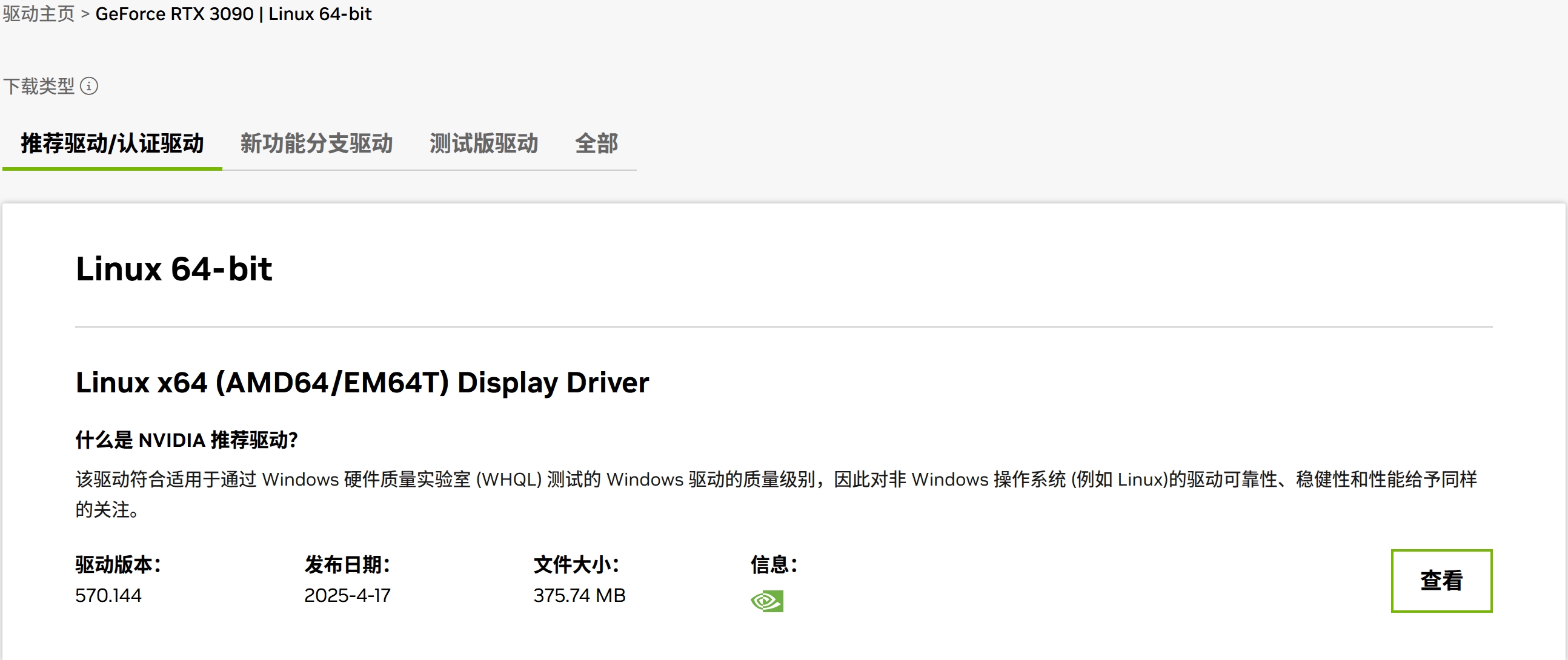
Select Recommended Driver/Certified Driver type and click View.
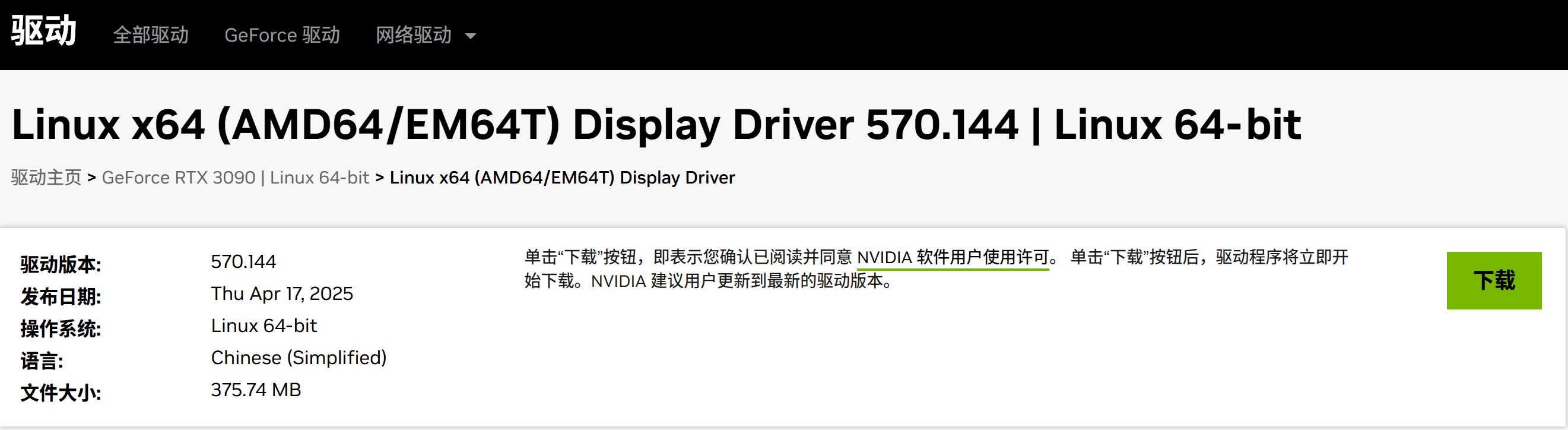
Click Download and upload the corresponding driver to your server.
Install Drivers
If already installed, skip to
Environment Installation
Replace the example filename
NVIDIA-Linux-x86_64-570.144.runwith your actual downloaded filename.
Grant execute permission to the installation file:
chmod +x NVIDIA-Linux-x86_64-570.144.runRun the installer, skipping X Server check and not installing OpenGL files:
./NVIDIA-Linux-x86_64-570.144.run -no-x-check -no-opengl-files
 If the installation prompts missing tools:
Execute the following commands to install compilation tools:
apt update
apt install make gcc -y
After tools installation is complete, run the installer again:
./NVIDIA-Linux-x86_64-570.144.run -no-x-check -no-opengl-filesCheck the driver after installation:
nvidia-smiEnvironment Installation
Replace
<CustomerID>in the URL with your actual customer ID. For ID retrieval details, refer to Console - Profile.
Professional Architecture
wget -O manager.sh https://product-deploy.titanai.cloud/admin/deploy/env/professional/manager/install/<CustomerID> && bash manager.shConverged Architecture
NVIDIA
wget -O computation.sh https://product-deploy.titanai.cloud/admin/deploy/env/install/<客户ID> && bash computation.shCPU
wget -O computation.sh https://product-deploy.titanai.cloud/admin/deploy/env/cpu/install/<客户ID> && bash computation.sh:::
When you see the following logs, installation has completed successfully:
[2025-04-07 01:46:41] Installation completed successfully
[2025-04-07 01:46:41]   WARNING: System will reboot in 1 minute. Use 'shutdown -c' to cancel.
[2025-04-07 01:46:41] Executing: shutdown -r +1 'Reboot By InfraX'
Installation log has been saved to: /var/log/infra_install_20250407_014609.log
Please wait for the server to reboot before proceeding with subsequent operations.