
Free Download
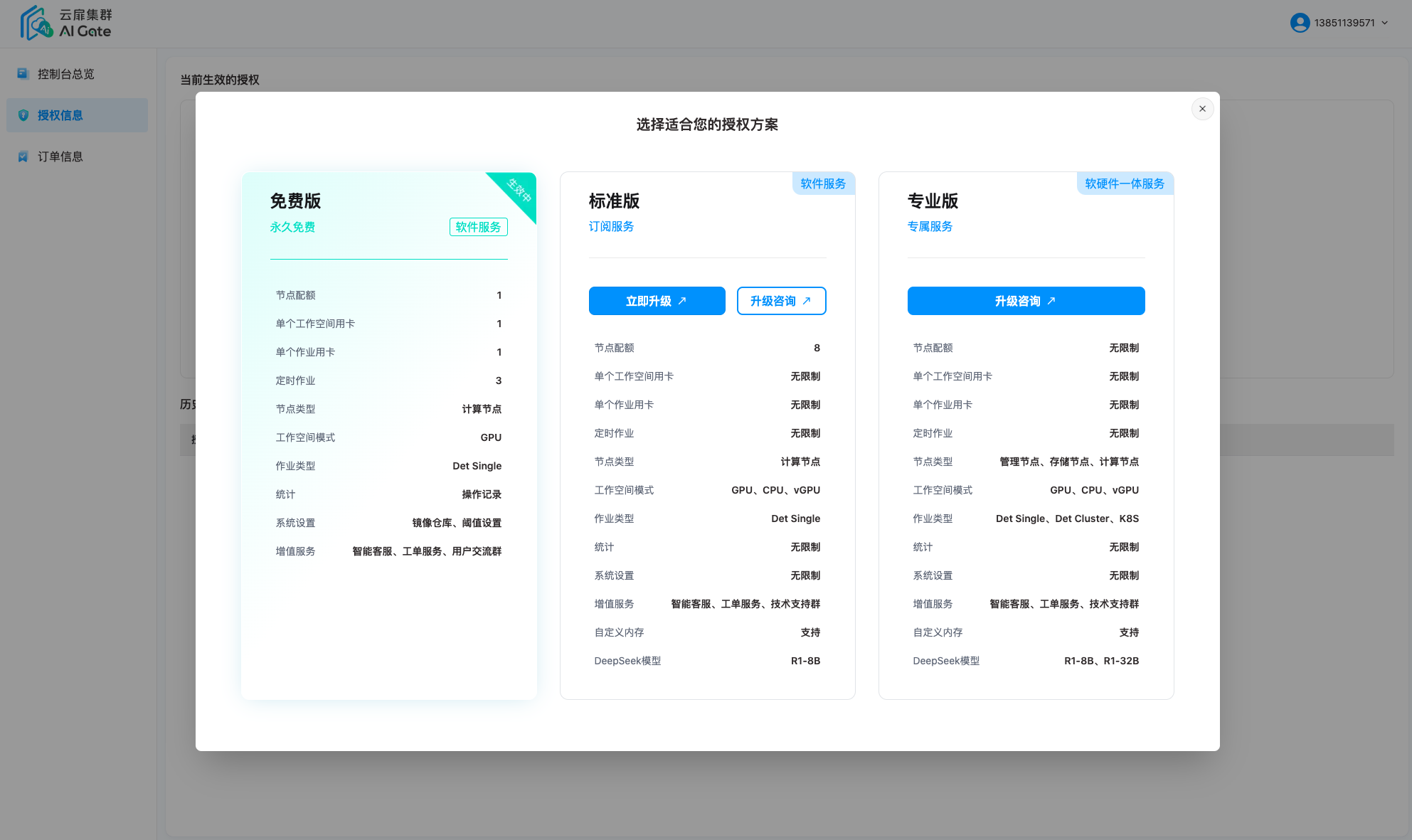
YanFlow Cluster is permanently free. Deploy and install according to the guide.
| Configuration | Manager Node | Storage Node | Compute Node |
|---|---|---|---|
| CPU | 48+ Threads | 80+ Threads | 128+ Threads |
| Memory | 128GB+ | 256GB+ | 512GB+ |
| Data Disk | 1.92TB+ ×1 | 3.84TB+ ×N | 1.92TB+ ×1 |
| System Disk | 480GB+ | RAID 1 Array | 480GB+ | RAID 1 Array | 480GB+ | RAID 1 Array |
| Management NIC | 10GbE Optical × 2 | 10GbE Optical × 2 (Optional) | 10GbE Optical × 2 (Optional) |
| Storage NIC | 100GbE+ Optical × 2 | 100GbE+ Optical × 2 | 100GbE+ Optical × 2 |
| Compute NIC | - | - | 200GbE+ Optical × 2 |
| GPU | - | - | NVIDIA CUDA-Compatible GPU × 8 |
Register Account
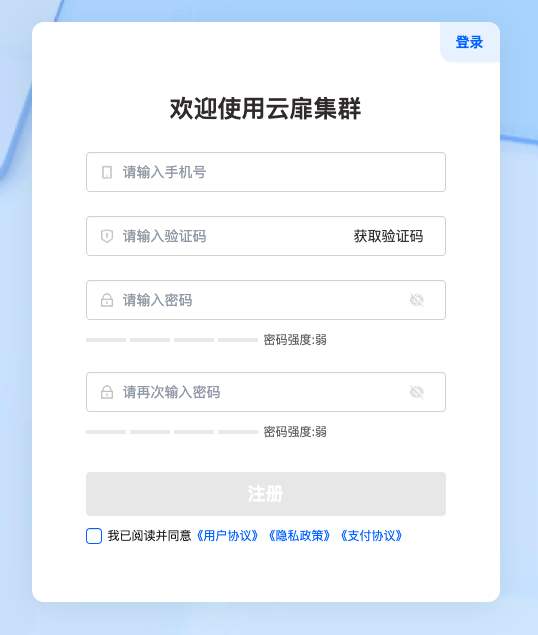
Enter the Cluster Official Website, click « Login » at the top of the page to enter the registration page.
Enter your phone number, obtain and enter the verification code received on your phone.
Set your login password and enter it again.
Check the service agreement, click « Register », and successfully create an account.
Login
You can log in to the platform in multiple ways:
SMS Login: Use the phone number filled when registering your platform account and the verification code received to log in.
Password Login: Use your registered platform account + password to log in. If you have not registered an account yet, we recommend you register first. Please refer to Register Account.
QR Code Login: Use WeChat to scan the QR code for quick login.
SMS Login
On the login page, select SMS Login and enter your phone number.
Click « Get Verification Code », enter the verification code, check the service agreement, and click « Login/Register » to log in to the platform.

Password Login
On the login page, select Password Login, enter your phone number/email/username and password.
Check the service agreement and click « Login » to log in to the platform.

QR Code Login
- Open WeChat Scan and scan the QR code on the login page to authorize login to the platform.

- If the current WeChat is detected as first-time scan, you need to bind a phone number.

Complete Customer Profile
After registering and logging in to the platform, you need to complete your customer profile as soon as possible to purchase the required authorization plan. There are two ways to complete the profile: create a new customer or bind an existing customer.
Create New Customer
- Log in to the platform, navigate to User Avatar > Profile from the top navigation of the console to enter the user profile page.

- In the Customer Profile section, click « Complete Profile », select Create New Customer, and enter your customer name, contact person name, contact phone number, contact email, address, and other information.

Click « Confirm Submit » to successfully complete your customer profile.
In the Customer Profile section, you can view your customer information and support editing and updating again.

Bind Existing Customer
- Navigate to User Avatar > Profile from the top navigation of the console to enter the user profile page.
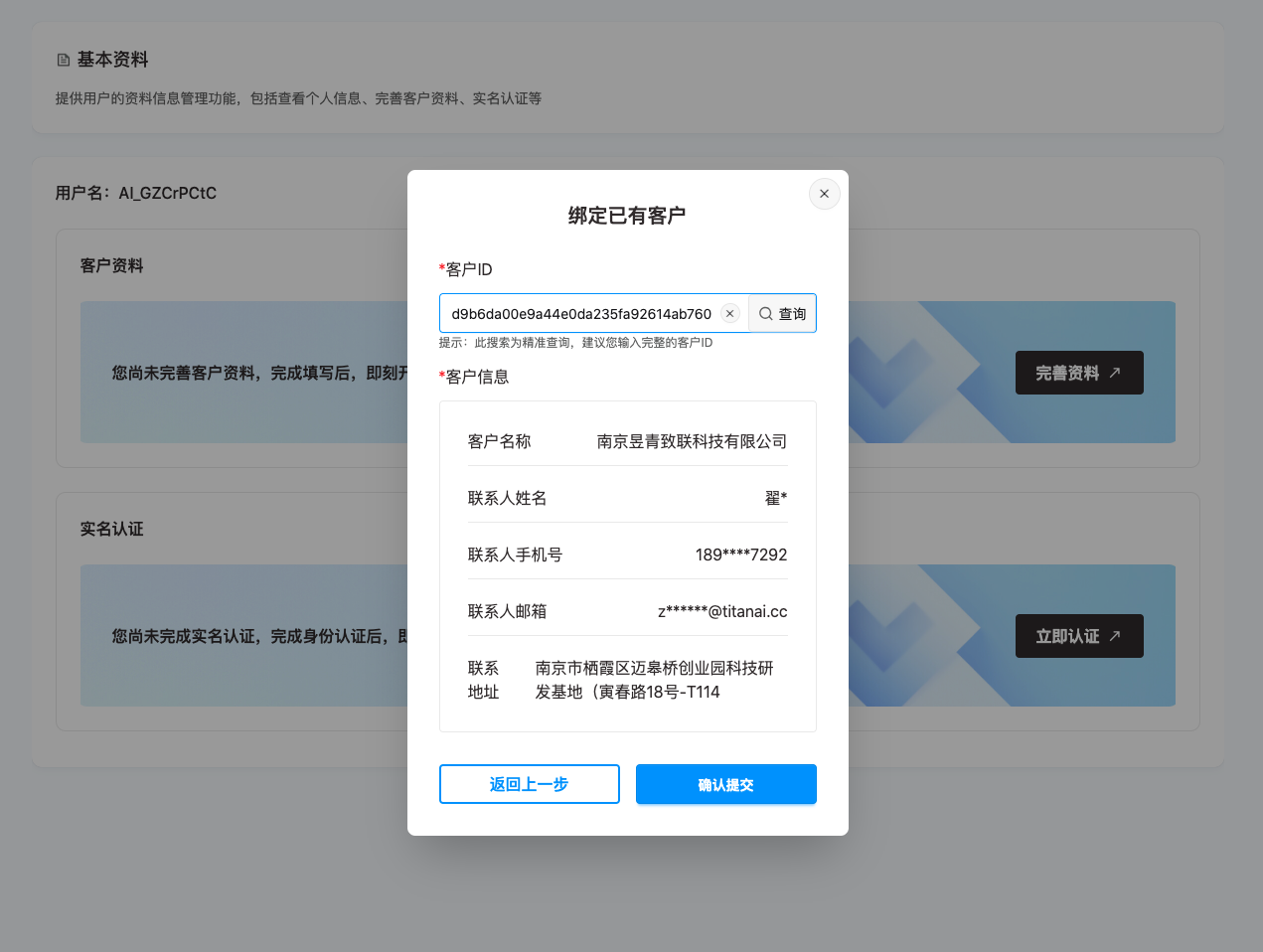
Click « Complete Profile », select Bind Existing Customer, enter your Customer ID, click « Query » to confirm customer information.
After confirming the customer information is correct, click « Confirm Submit » to successfully bind your customer profile.
Real-Name Authentication
After real-name authentication is completed, the account will belong to you. Accounts without real-name authentication cannot complete product purchase, renewal, upgrade, and other operations. You need to complete real-name authentication for your account as soon as possible.
- Log in to the platform, navigate to User Avatar > Profile from the top navigation of the console to enter the user profile page.
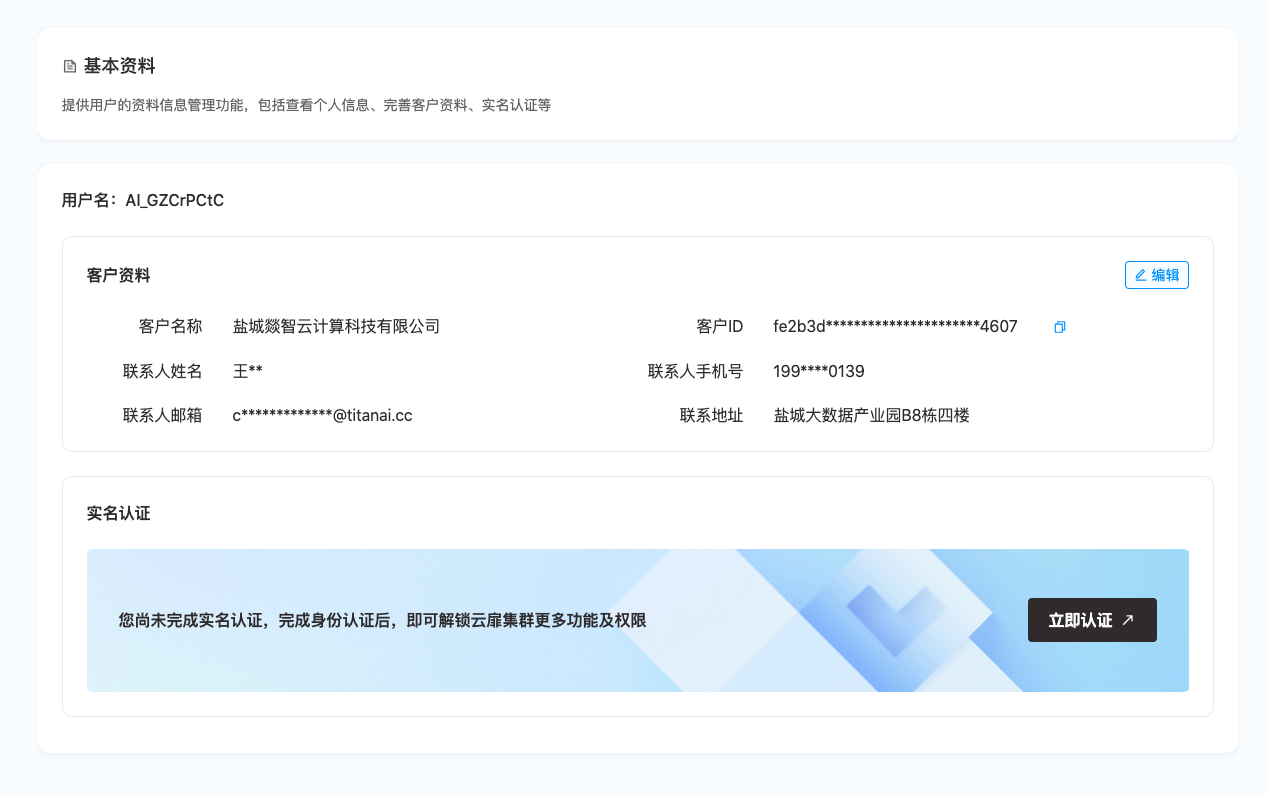
- In the Real-Name Authentication section, click « Authenticate Now », enter your real name and ID card number.

Click « Confirm Submit » to complete your real-name authentication.
In the Real-Name Authentication section, you can view your real-name information.
- Real-name authentication must ensure that the registered phone number, authenticated name, and authenticated ID number belong to the same entity.
- One YanFlow Cluster website account can only authenticate one entity, meaning one account can only correspond to one individual real-name authentication.
- Real-name authentication does not support unbinding after completion. Please operate with caution.
Product Purchase
TIP
Supports online direct ordering of YanFlow Cluster Free Edition and Standard Edition.
For YanFlow Cluster Professional Edition, you can submit an inquiry application online, and we will arrange a professional account manager to serve you.
Purchase Prerequisites
Register a platform account and log in successfully.
Before purchasing YanFlow Cluster product services, you must complete the Customer Profile and Real-Name Authentication processes.
Purchase Entry
- Homepage: In the homepage section, click « Try Now », select the authorization plan suitable for you, click « Use Now » to go directly to the product selection page.

- Product Services: In the product services section, directly select the authorization plan suitable for you, click « Use Now » to go directly to the product selection page.

Purchase Process
- Selection: Select the required authorization type, GPU model and quantity, and purchase duration.

- Free Edition only supports selecting one GPU model and does not support selecting multiple GPU models; Standard Edition supports selecting multiple GPU models.
- When using the YanFlow Cluster management system later, only the GPU models you selected are supported.
- Settlement: Based on the authorization type, GPU model and quantity, and purchase duration you selected, calculate the fees you need to pay. After confirming there are no errors, select the payment method, click « Pay », and scan the code to pay the corresponding fees.

- Complete: After payment is completed, successfully order the YanFlow Cluster management system. You can click Help Center > Deployment Guide to self-install the YanFlow Cluster management system.

Product Upgrade
- Click Console > Authorization Information to view your current effective authorization and historical authorization records.

- In the Current Effective Authorization section, click « Upgrade » to upgrade your authorization plan.